Clusters
Once you have logged in and optionally selected the DNA test, the app will download your match data and group your matches into clusters. The first time you do this it may take a minute or two to download the matches.
Matches
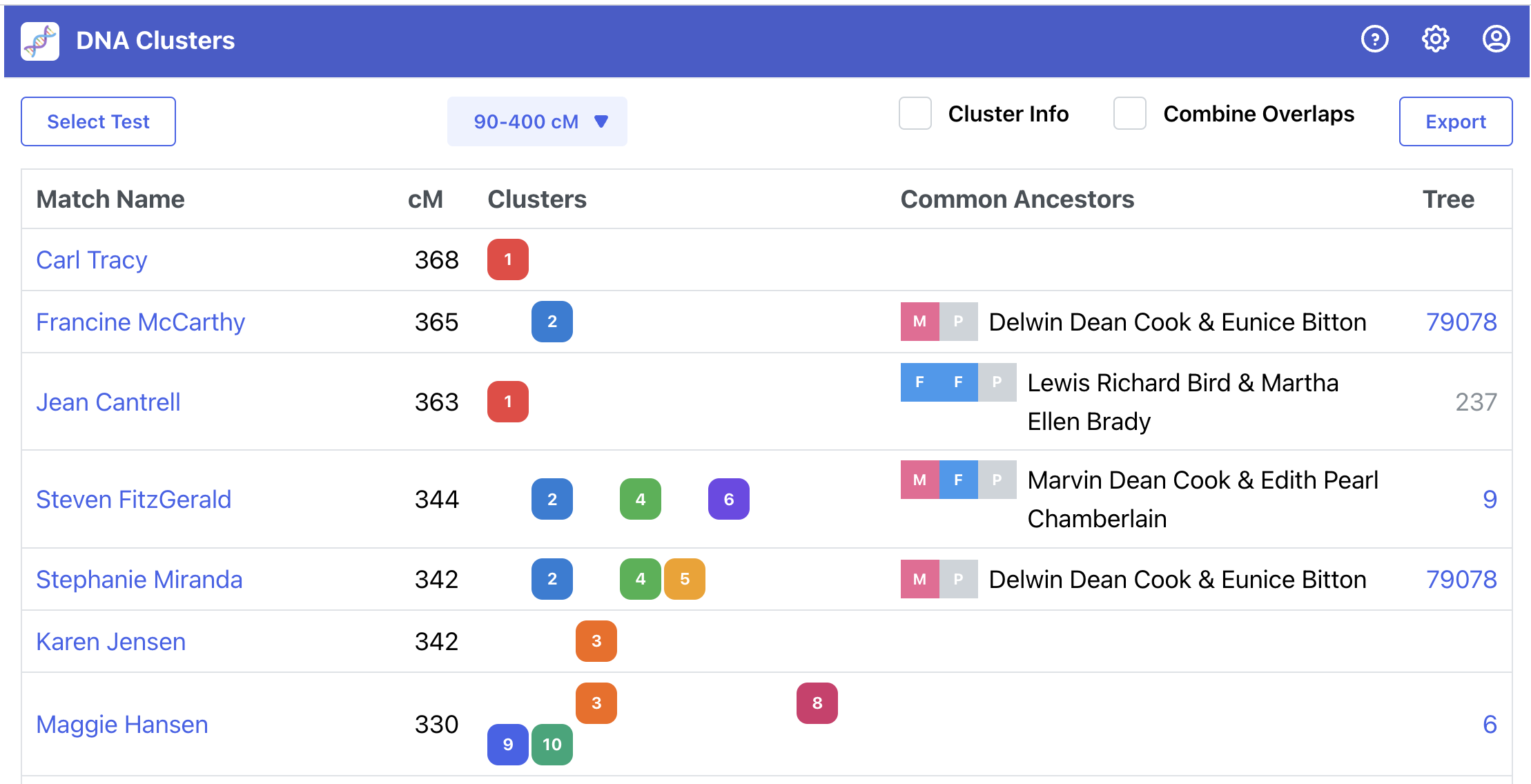
Once the matches have loaded, you will see them sorted by centimorgans. Only matches within the specified centimorgan range will be displayed.
The match name is listed in the Match Name column. Clicking on the name will open up the Ancestry DNA shared matches for that match.
The Cluster column indicates which cluster or clusters the match belongs to.
If you have linked a family tree to your DNA test and if a match has an ancestor in common with you, the ancestors will be listed in the Common Ancestors column.
If a match has a tree linked to their DNA test, a number will display in the Tree column indicating how many people there are in their tree. Clicking on the tree will open up their tree in your browser.
Buttons and Controls
Above the match list are some buttons and controls.
Click on the Select Test to choose a different DNA test. This button is displayed only if you manage more than one DNA test.
The Centimorgan Range control displays the current centimorgan range for your matches. Click on the range to make a change.
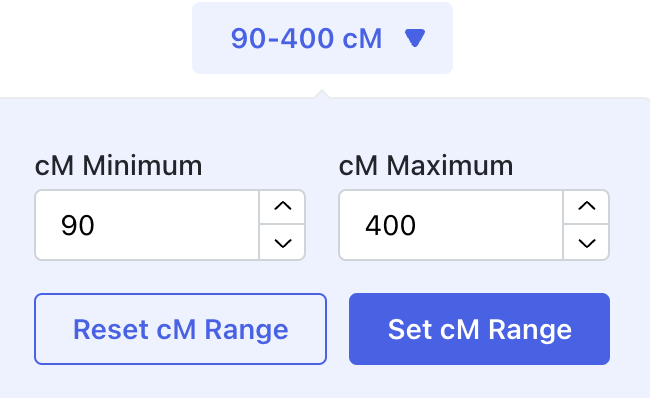
Enter the minimum and maximum values, the click the Set cM Range button. Click the Reset cM Range button to return to the default centimorgan range (90-400 cM).
Click on the Export button to export the current matches and clusters to an Excel spreadsheet file.
Combine Overlaps
Ideally when we are looking for great-grandparent couples, we should have 4 distinct clusters. However, for various reason, we usually have several more clusters. You may notice that many matches belong to one or more clusters. You may notice that some clusters will mostly overlap with another cluster. Dana Leeds explains why this happens in this post (opens in a new tab).
If you click on the Combine Overlaps button, the app will combine overlapping clusters.

Cluster Info
Clicking on the Cluster Info button will reveal some additional cluster information above your matches.
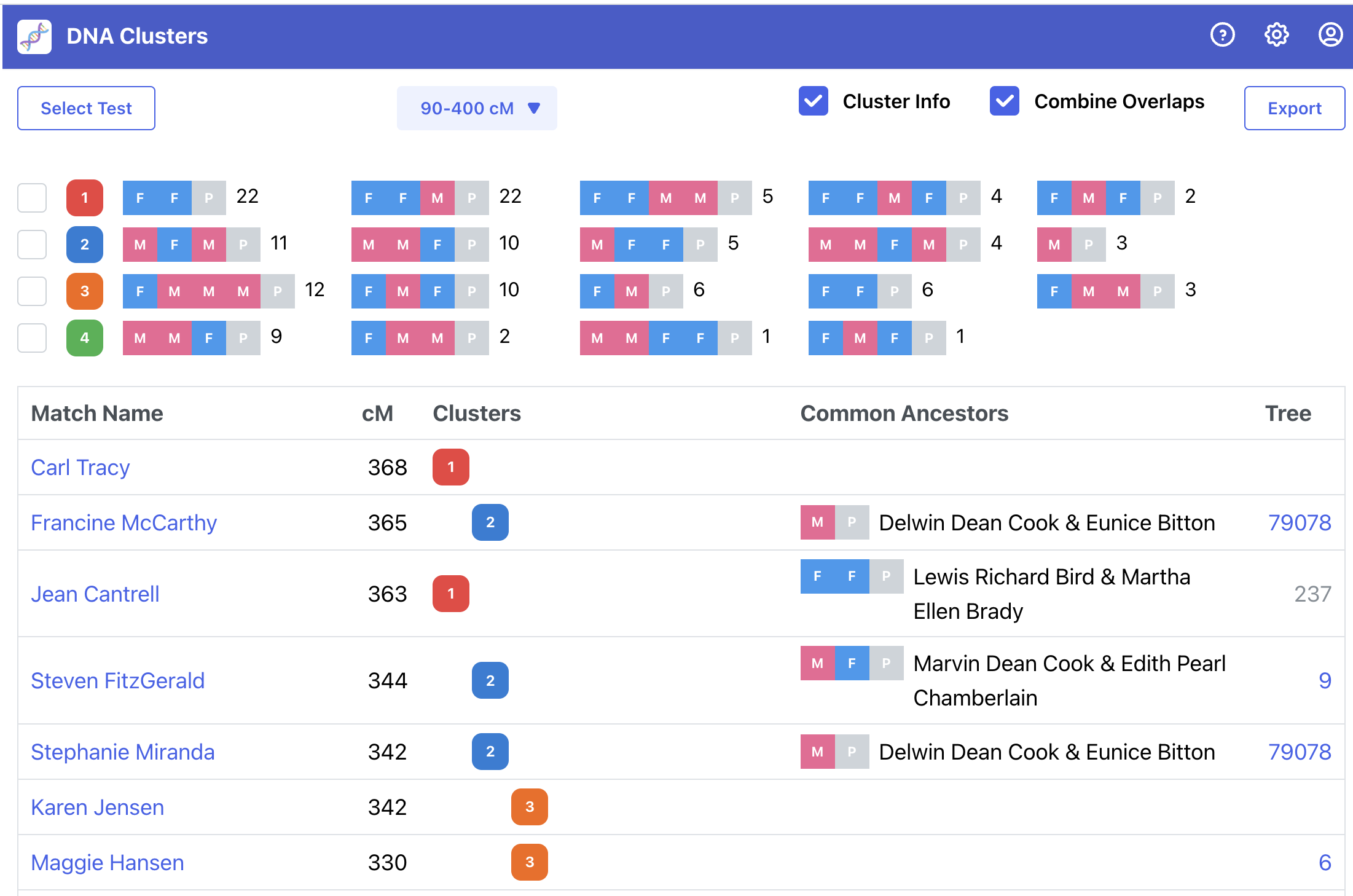
Each cluster will be listed. For each cluster, common ancestor couples will be listed sorted by the number of times matches in the cluster share the common ancestor with you. F and M indicators are displayed for each couple allowing you to quickly see where the ancestors are in your family tree. It makes it easy to see if a cluster is on your father's side (F), mothers's side (M), your father's father's side (FF), father's mother's side (FM), etc.
Hover the mouse cursor over an ancestor couple to see their name.
Click on the checkbox for a cluster to view matches only for that cluster. You may click multiple clusters. Uncheck all clusters to view matches again for all clusters.